
Security check in 10 minutes
First, secure the linked email or phone, as password resets can go there. Only use real options according to the account's device management, session logout, two-step verification, or security center if visible.
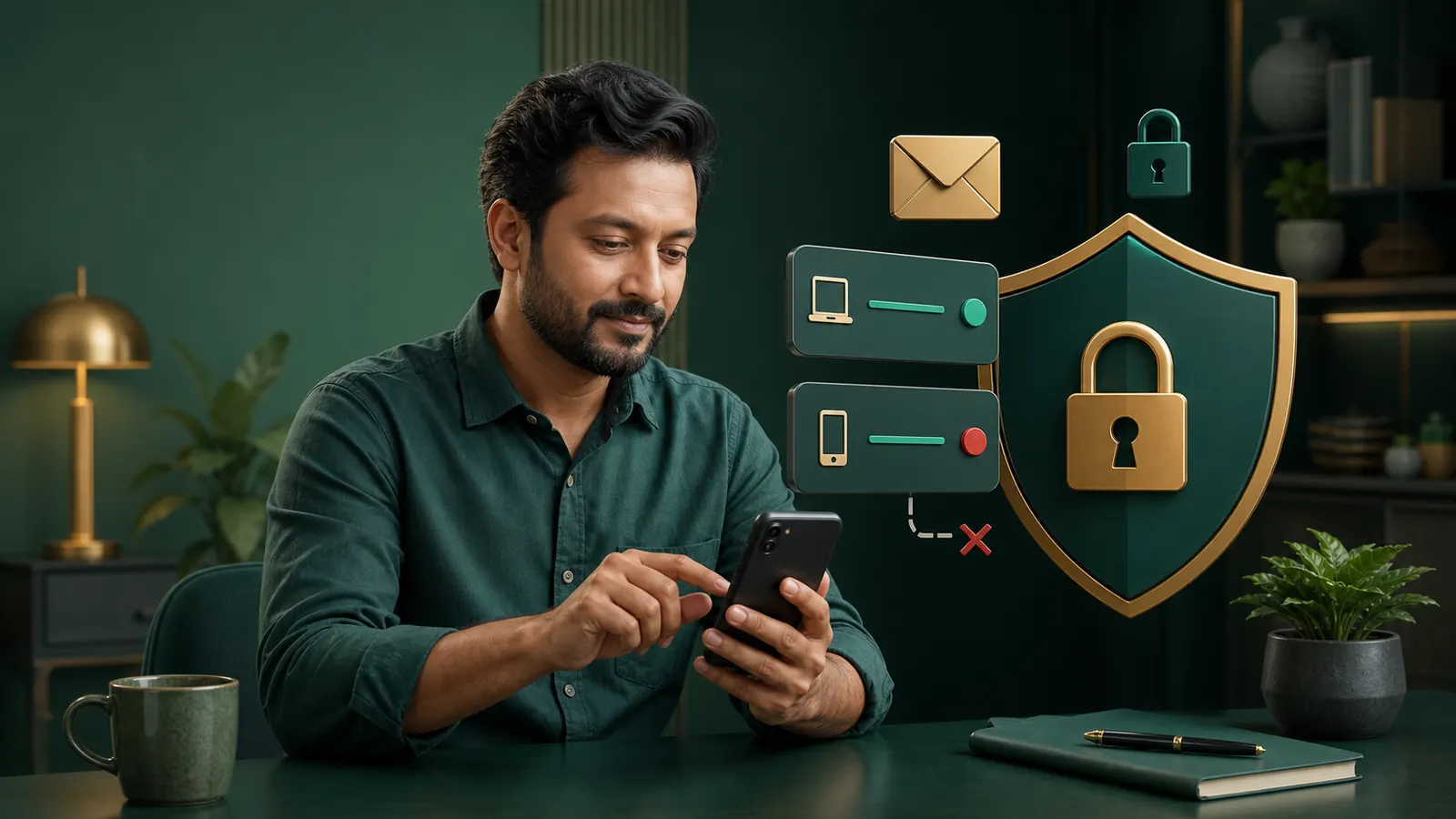
- Password for the linked email Keep long, unique passwords that are not used on other sites.
- Phone number and SIM Check if the old number is still linked; consider provider-side security if there is a SIM change or unusual signal loss.
- Device lock Limit PIN/biometric lock, short auto-lock, and notification preview.
- System updates Update OS, browser, and WebView from trusted update sources.
- Unknown Apps Review permissions for remote-control, overlay, or unknown APKs.
- Active sessions If there is an option in the account, log out of unknown devices; if not, check again after changing the password.
If there are access issues Login Assistance Use.
Check if OTP, email subject, or payment alerts are visible on the lock screen in notification previews. Use a trusted connection without sensitive recovery on public Wi-Fi. Before selling, repairing, or giving the device to someone else, understand the need to close account sessions, review backups, and secure resets; simply deleting the App icon is not enough.
Also review browser extensions. Unknown extensions can read page content or change the clipboard. After removing the extension, restart the browser and check the linked email, account history, and recent downloads from a clean session. Keep the recovery options of the password manager secure as well; do not store the master password or recovery code in chat.
After completing the security check, note the date and redo the list after changing devices, SIMs, or receiving suspicious messages.
Use a strong and unique password
If the same password is used on multiple sites, an attempt may be made to access other accounts after a data breach on one site. Avoid using names, birth dates, phone numbers, or simple patterns; use a long passphrase with several unexpected words. Also, do not write your actual password, OTP, PIN, or recovery code as examples.
- First, secure your email If the recovery method is under someone else's control, changing the account password still poses a risk.
- Use a password manager Generate and store unique passwords for each site; keep the master password unique as well.
- Delete old autofill If the browser enters the wrong password, update the saved entry; do not save on shared devices.
- Keep recovery codes offline If the account actually provides a recovery code, keep it in a secure offline record, not in the screenshot gallery or chat.
If there is an error in password reset Check secret access information See.
Do not share OTP and PIN with anyone
OTP usually confirms your action; PIN protects payment access. If someone asks for the code, they can complete the action on your behalf. Do not trust claims that you need to know the password, OTP, or PIN to resolve legitimate issues.
- Stop unfamiliar requests End the call/chat and do not open links.
- Keep evidence Take screenshots of the number/profile, time, and demand; do not keep codes or personal information in screenshots.
- Check sessions and transactions Check for unknown login or payment attempts if you receive an OTP without requesting it.
- Change related passwords Change the email/phone and account password connected to a clean device.
If transactions are involved Reconcile payment records।
Recognize fake pages and domains
Multiple sites appear under the name VB8; operator relationship is not confirmed. Extra characters in the domain, changes in letter order, misleading subdomains, search advertisements, copied logos, QR codes, short links, and urgency messages increase phishing risks. An HTTPS padlock connection may encrypt, but does not prove site identity or legality.
- Read the address bar completely See which is the last main domain; not the page title or logo.
- Use your own history Match old trusted records without going from chat, social messages, or ads.
- Stop at certificate warning “Do not click ”Continue anyway” or bypass security.
- Recognize urgency Do not provide secret access information when asked under the threat of account closure, prize expiration, or loss of refund.
- Avoid QR and shortened links The risk of going to a wrong page increases if the destination is not visible.
If suspicious about the download page Verify app and APK Do it.
Beware of fake support and remote access
Verification of “support” in social inbox, group, personal phone, or personal MFS number is not valid. Remote-control capabilities like AnyDesk/TeamViewer, screen sharing, accessibility, overlay, or device administrator requests can expose secret access information and payment. This site does not provide any external support contact.
High-risk claims
- Fee to unlock account
- Deposit to get a refund
- Verification by saying OTP/PIN
- Full picture of NID in chat
- Remote app and screen sharing
Safe response
- Stop communication
- Do not provide any new funds
- Withdraw permission
- Keep screenshots hidden
- Use only if options are available inside the account
How to arrange transaction proof with minimal information Safe payment templateis present.
If you see anything unusual in the account
Action order is important if you notice unfamiliar login, password change, transaction alert, SIM issues, or suspicious apps. Stop sensitive access without deleting evidence. Recovery of funds cannot be guaranteed, but quick containment can reduce further damage.
- Disconnect suspicious apps/devices Stop sensitive activities; end remote sessions if present.
- Protect connected email and phone Change passwords from a clean device and check SIM/phone access.
- Change account password Use a different password; update other sites with the same password.
- Logout of active sessions Remove unfamiliar devices if options are visible; do not assume if options are not available.
- Match transaction history Note unfamiliar amounts, references, and times; not new payments.
- Preserve evidence Keep screenshots, time, device, messages, and work timeline; cover sensitive parts.
- Seek local appropriate support if needed Consider assistance from a trusted adult or appropriate local authority/professional based on the type of incident; this site does not provide external links.
Do not provide new funds to compensate for losses; Steps for a break Take.
Common questions about account security
Why is a separate password needed for VB8?
If a password leak occurs on another site, attempts may be made here with the same credentials. Keep a unique password for linked email; check if there is a 2FA option on the real account page. See password practice।
Can a support worker ask for OTP or PIN?
The security policy is to not give OTP or PIN to anyone; not even if they claim to be support. Stop the request and check session and transaction. Check code security।
What if they ask to screen share or install a remote app?
Decline, stop communication, revoke permission, and check the device. Profile photo or name does not prove identity. Check remote risk।
If you see a suspicious login, which password should you change first?
First secure the linked email/phone, then change the account password and log out of the session. The session option depends on what is visible on the account page. Check incident order।
What should I do if I accidentally provide information on the wrong page?
Disconnect from the Page/App, change related passwords, check payment and session, and keep evidence. Whether to report depends on the incident and local channel. Get a complete response।